
Xaero's Minimap
Displays a map of the nearby world terrain, players, mobs, entities in the corner of your screen. Lets you create waypoints which help you find the locations you've marked.
adventurefabricforge+4
71.8M0N/A

Adds a full screen world map which shows you what you have explored in the world. Works great together with Xaero's Minimap.
Downloads
63.9M
Followers
11,238
Updated
about 2 months ago
License
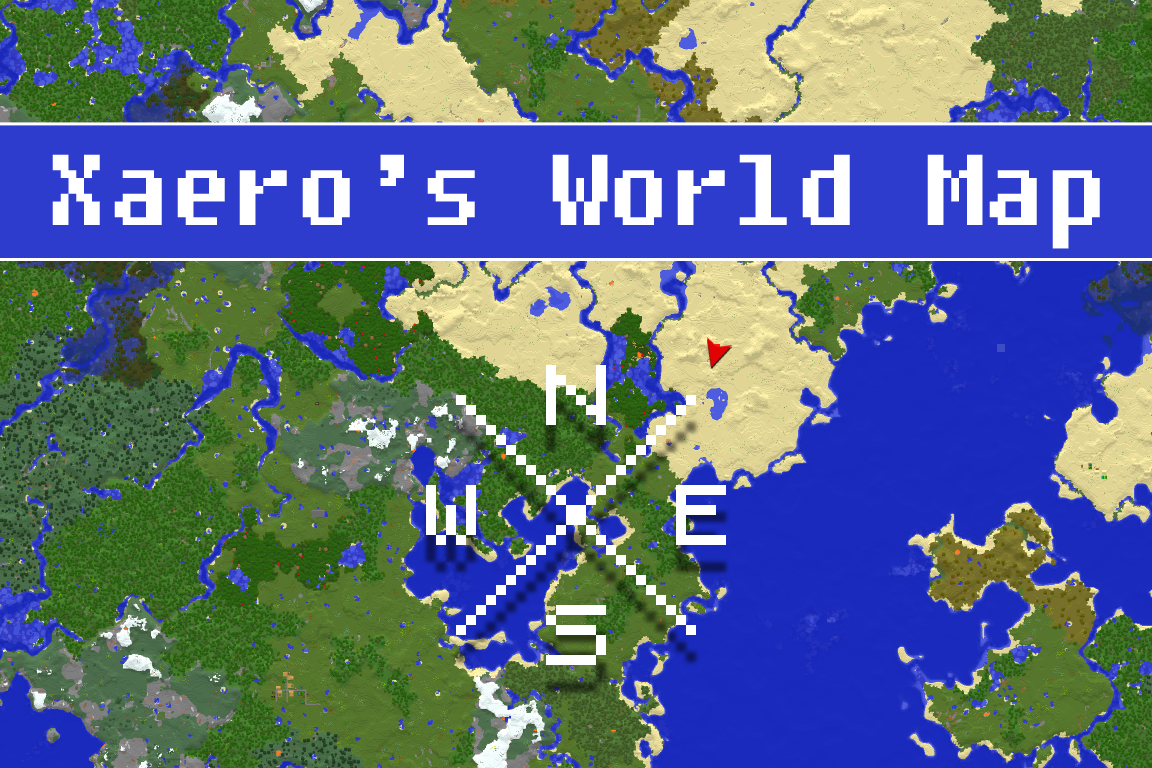
Xaero's World Map mod adds a self-writing fullscreen map to your Minecraft client. Works as a separate mod but is a lot better with Xaero's Minimap. The reason why it's available separately is to keep Xaero's Minimap as light-weight as possible. This mod is mostly client-sided. Installing it on the server side is optional for some additional features like world identification.
The mod is still in development! Please report any bugs that you encounter or otherwise they probably won't get fixed.
Make sure your world is optimized (Singleplayer - Edit - Optimize World) for the Minecraft version you're playing (repeat after every Minecraft update). It takes A LOT longer to generate singleplayer maps from unoptimized world saves.
Thank you!
First, exit the server and locate the Minecraft game directory that you're using to play on the server. In the game directory, go into xaero/world-map/Multiplayer_[server_address]/DIM-1/[map_folder]. In older versions, xaero/world-map is simply XaeroWorldMap. If such doesn't exist already, create a folder called "caves", without the quotation marks, and go into it. Inside the caves folder, create a folder called "-2147483648", without the quotation marks, if such doesn't exist already. Go back into the folder that contains the "caves" folder and move all ".zip" files to the caves/-2147483648 folder. Feel free to delete the cache folders or also move them with the ".zip" files.
You can fully achieve this only when using the normal version of the minimap or no minimap at all. The fair-play version of the minimap now disables world map cave mode in the Nether and you can't toggle that, so it won't be exactly like it used to be.
If you have Nether map data from before 1.30, please start by moving it in the correct folder as explained under "How do I restore pre 1.30 update Nether maps in multiplayer to be displayed in the "full" cave mode type?" on this page.
After you're done with that, join a world/server and open the world map settings. Locate "Default Cave Mode Type" and set it to OFF and then set "Legible Cave Maps" to ON. Next, open the world map screen and click the cave icon in the bottom left of the screen. In the menu that opens, set the "Cave Mode Top Y" to absolutely any number. If you are in the overworld, set the "Cave Mode Type" to OFF. When you are in the Nether later, set "Cave Mode Type" to Full. The cave mode type is stored per dimension, so you can set it to Full for any nether-like dimension and keep it on OFF for anything else. You can also switch between displaying below and above bedrock roof by toggling it.
In singleplayer, the map is loaded directly from the world save. This means that you can pregenerate the world using whatever tools you prefer, relog and use the "Reload Regions" option in the world map settings to fix any conflicts in the map cache. In multiplayer, it isn't as simple. However, if you can download the server world save and enter the world in singleplayer, then you can pregenerate the world using a method of your choice, relog and then use the "Convert All Regions" in the world map settings to convert the whole world save to a multiplayer-compatible map instance saved to xaero->world-map->World->null->cm$converted. In older versions, xaero/world-map is simply XaeroWorldMap. You can copy/move that map instance folder to your server map instances in the xaero/world-map folder.
This mod lets you have multiple maps on the same server address. You can freely switch between maps and create new ones at any time. Map overwriting can be prevented by choosing the right "Map Selection" mode for the type of server that you are playing on. Map selection is done in a special menu by clicking the bottom left icon on the world map screen (if the menu isn't open by default). In the menu you can switch between Manual, World Spawn and Single modes and select/create maps by using the top-center dropdown menu. If you hover over the Map Selection option, you can read everything you need to know about each map selection mode, including Server mode. World Spawn mode is the equivalent of what was used by the world map pre 1.6. So you don't have to downgrade the mod to still use it. Server mode is the best option for most cases because the server automatically controls your map selection based on server-side level IDs. It requires the mod to be installed on the server side. If changing the map selection mode switches your map to an empty one, you can always rebind the map that you want to be used by selecting it from the dropdown menu and confirming.
A single server address can have multiple overworlds, nethers etc. It can be due to multiple sub-servers or just multiple world saves, for example a "Lobby" world and a "Game" world. Different worlds don't have any unique identifiers on the client side, which makes it impossible to reliably differentiate between them. Because of this, the world map mod lets you have multiple world maps for each dimension on the same server address. In older mod versions, by default, map selection is Manual, which means that you are asked to confirm which map to use every time you switch dimensions/worlds/sub-servers. You can also choose one of the 2 automatic modes. Map selection is done in a special menu by clicking the bottom left icon on the world map screen (if the menu isn't open by default). In the menu you can switch between Manual, World Spawn and Single modes and select/create maps by using the top-center dropdown menu. If you hover over the Map Selection option, you can read everything you need to know about each map selection mode, including Server mode. World Spawn mode is the equivalent of what was used by the world map pre 1.6. So you don't have to downgrade the mod to still use it. Server mode is the best option for most cases because the server automatically controls your map selection based on server-side level IDs. It requires the mod to be installed on the server side. If changing the map selection mode switches your map to an empty one, you can always rebind the map that you want to be used by selecting it from the dropdown menu and confirming.
Your currently confirmed map affects which waypoints sub-world in the minimap mod is considered automatic. This allows each created map to have separate waypoints data. At any point in time, you can select and view any non-automatic waypoints sub-world by going to the waypoints menu (press U) and selecting it from top-right dropdown menu. You can make any sub-world automatic for your currently confirmed map by selecting Options -> Make Sub-World Auto.
Do not panic. It's almost certainly not actually deleted. Old world map versions use a world spawn-based system to separate a server into multiple maps. This system often breaks because of servers adding custom functionality to the vanilla compass item by sending fake world spawn coordinates to your game client. Make sure you update the mod to the latest version. There are now multiple map selection modes you can choose between, Manual being the default one. You can now view any world map you have on the current server address. Click the bottom left icon on the world map to open the map selection menu, if it's not open by default. The top center dropdown menu allows you to select existing or create new world maps. You can hover over the map selection mode setting (bottom left) to read about how each mode works. Server mode is the best option for most cases because the server controls your map selection based on server-side level IDs. It requires the mod to be installed on the server side. Manual mode is the safest alternative and should work on every other server. There are also 2 additional automatic map selection modes when Server mode isn't an option. Read more about them in the tooltip of the setting.
Old map is not in the map menu? This can mean 2 things: the server address has changed or the dimension IDs have changed.
Let's start with the dimension ID change. Each dimension on the server has a separate directory in the game directory -> xaero -> world-map directory. In older versions, xaero/world-map is simply XaeroWorldMap. Please backup the xaero/world-map directory before you begin doing anything with it. In older mod versions, the dimension directory name contains the server address and the dimension key, for example XaeroWorldMap/Multiplayer_127.0.0.1_DIM1. In newer versions the dimension directory is a sub-directory, so something like xaero/world-map/Multiplayer_127.0.0.1/DIM1. For compatibility reasons, default overworld, nether and the end dimensions are named null, DIM-1 and DIM1. Other dimensions should have their name be based on the original dimension ID, for example Multiplayer_127.0.0.1/minecraft$overworld_creative. In 1.16+, you can see your current dimension ID on the F3 screen ingame to figure out which directory is meant for which dimension (for example "minecraft:overworld"). Please exit to the game title screen or close the game before editing files/directories.
Each dimension directory contains sub-directories, one for each map that you have in the dimension (for example mw$default or mw-4,0,-4) as well as a file named dimension_config.txt that contains the actual display names of the maps. You can use the file to help you find a specific map directory that you want. Moving/copying a map directory between dimension directories should move/copy it between dimensions. You can give it a name later ingame. The most common case would be something like moving a map from /null to /minecraft$overworld_survival. It is needed when a 1.16+ server starts using a unique dimension ID for each sub-world.
For server address changes, you would first have to remove all directories inside game directory -> xaero -> world-map that contain the new server address. There is usually only 1 such directory if you are using the latest mod version. Please backup the whole xaero/world-map directory before you do that. Also, exit the game at least to the title screen. Then you would have to rename each old server address directory (in xaero/world-map) to the new address, replacing ONLY the address part.
Message me or leave a comment if you have questions!
Here's the old explanation if you can't update the mod to 1.6.1 or newer:
Do not panic. It's almost certainly not actually deleted (this has never happened as far as I know). It's likely caused by a server plugin changing the behavior of the vanilla compass item and interfering with the mod's "multiworld" detection. In most such cases the compass item points to your bed instead of the global spawn point. Sleeping in the right bed again should bring everything back for you if sleeping in another one was the cause of the map "resetting".
If the map "reset" because of a new plugin being added (and if removing it is not an option for you), then here's how you can restore your map (and hope the plugin doesn't do it again):
Make sure Minecraft is NOT RUNNING.
1. Go to the game directory
2. Go to the XaeroWorldMap directory
3. Find directories that represent the dimensions you have visited on the server. These directories contain the address of the server in their name. The one that ends with _null is the overworld, _dim-1 is Nether etc.
4. Open the overworld directory (_null).
5. You should see multiple directories that start with mw.
6. Find the one that is the biggest in file size. Copy the name of it somewhere so you don't lose it.
7. Now find the newest mw directory (likely the emptiest or just check the creation date). Move this directory somewhere else. Don't delete it just yet.
8. Rename the directory from step 6 to the name of the backed up directory from step 7.
9. Open Minecraft and test if the overworld world map is back.
10. If it's not, exit Minecraft and restore the old name of the directory that you have renamed + restore the backed up folder. Reread all the steps to make sure you're doing everything right.
If overworld is now fixed, proceed to step 11.
11. Rename and backup the directories with the same names as overworld for every other dimension that you'd like to restore.
Contact me if you have questions!
Please read the "Why are my waypoints no longer shown for a specific server?" section on the minimap description page. It should cover most cases. Contact me, if it doesn't help.
Here's a third-party Spigot plugin that simplifies this for you (not affiliated with or created by me): XMMForceFairPlay And a third-party datapack with similar functionality (not affiliated with or created by me): Xaero's Map Server Utils Use any third-party addons at your own risk.
Look for the "common" config file in the config folder directly in your server directory (not the world folder), usually config/xaero/world-map. One of the options lets you disable the registration of status effects, which is what prevents players from joining. Changes require a server restart. Do the same for the minimap mod.
You are allowed to make videos using this mod.
Using it in your modpacks is allowed with the following conditions:
Displays a map of the nearby world terrain, players, mobs, entities in the corner of your screen. Lets you create waypoints which help you find the locations you've marked.
Adds a full screen world map which shows you what you have explored in the world. Works great together with Xaero's Minimap.

Bringing first-person animations to the third-person

Render the player skin layer in 3d!

A working voice chat in Minecraft!
A Minecraft mod that provides realistic sound attenuation, reverberation, and absorption through blocks.

Adds dynamic lights to Minecraft as the most feature-complete and optimized dynamic lighting mod.

A Pokémon mod for Fabric and NeoForge